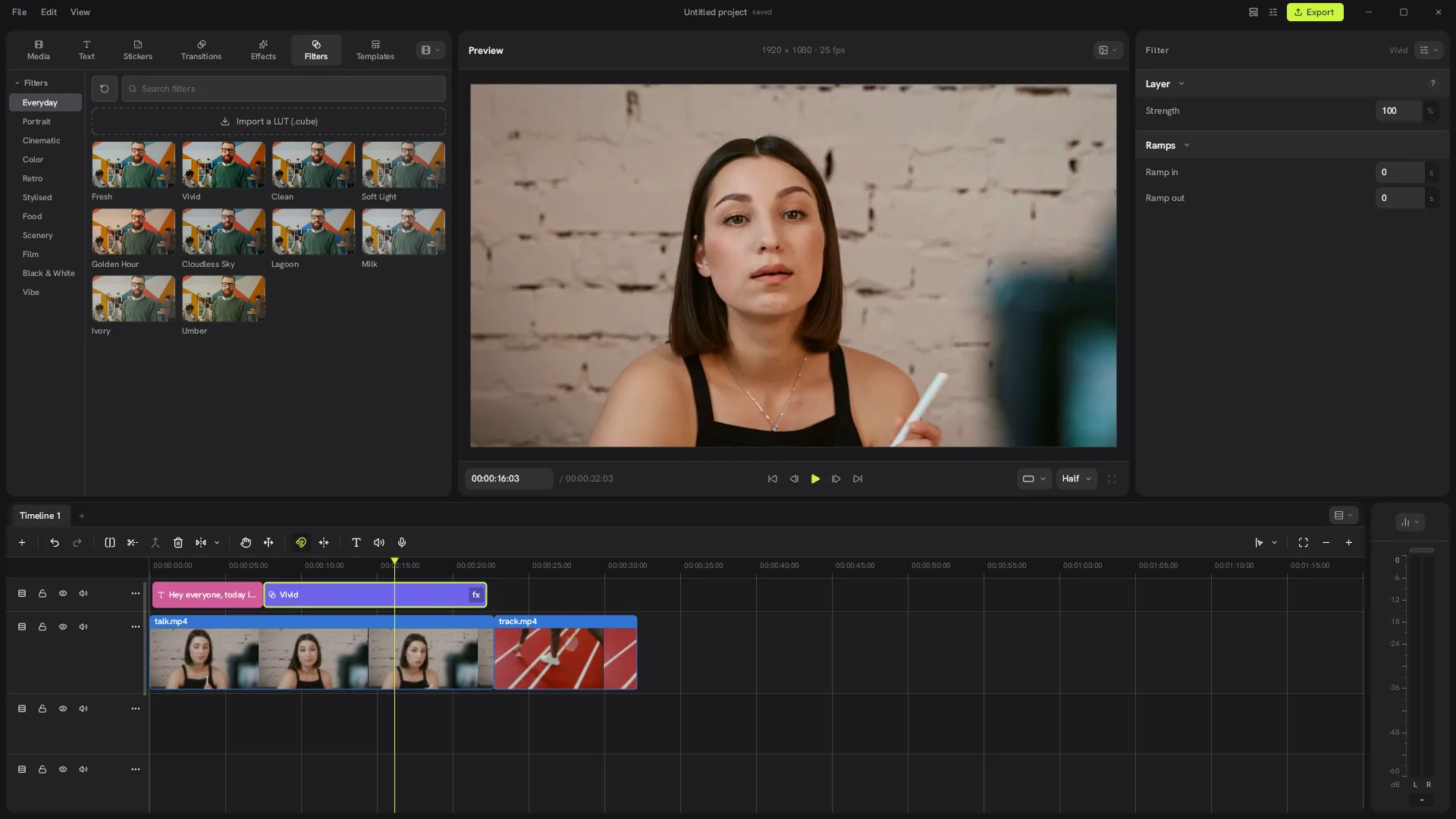
The Concat video editor can cut a person out of normal footage, no green screen needed. It works out a mask for every frame on your own computer, so there is no upload and no monthly cap.
How do you remove a video background in the Concat video editor?
- Put the clip with the person on a timeline lane.
- Put the new background (a video or an image) on the lane below it. Lower lanes show behind higher ones.
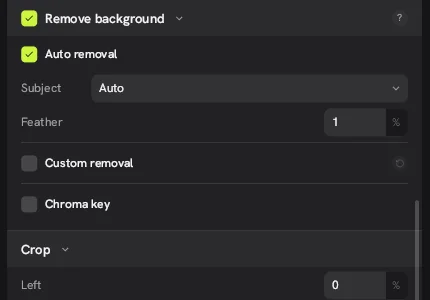
- Click the person's clip. In the right panel under Video, Basic, tick Remove background.
- Leave Auto removal ticked and Subject on Auto.
- Watch the Analysis line. It counts up while Concat finds the subject.
- When it finishes, move the playhead to refresh the preview.
What does the result look like?
Here is our test clip before and after. We put a red running track clip on the lane underneath.


The outline of the hair and shoulders was clean. With the default Feather of 1% the edge had a soft light halo, which is easy to spot on a strong colored background. Raise or lower Feather to taste, or pick a background closer in brightness to the original.
How long does background removal take?
It depends heavily on your hardware. On our test machine, with no graphics card and only software rendering, the analysis of a 22-second 720p clip took roughly six minutes. The model itself is small (about 15 MB) and downloaded automatically the first time. A machine with a GPU will be much faster.
When should you use Custom removal or Chroma key?
- Custom removal lets you paint the mask yourself when Auto picks the wrong subject or misses an object the person is holding.
- Chroma key is the classic green or blue screen key. If you shot against a backdrop, it is faster and sharper than Auto.
Tips for cleaner cutouts
- Light the person evenly and avoid backgrounds the same color as their clothes or hair.
- Keep the camera still for the best edges.
- Add a little Reduce noise or a filter on the new background so both layers look like one shot.
More detail on the settings is on our background removal feature page.
Watch it in Concat
We recorded this on Concat 0.2.7. Waiting time is sped up; every step is real.
- Put the new background on the lane below
- Select the speaker and tick Remove background
- Concat cuts the person out, no green screen