The Concat video editor exports video in H.264, HEVC or AV1 at up to 4K and 60 fps, with an optional 10-bit color mode. There is no watermark, no account and no paid tier for higher resolutions, which already sets it apart from CapCut's free plan. In our test a 32 second 1080p project with captions finished in about 40 seconds on a plain CPU.
How do you export a video in the Concat video editor?
- Press Ctrl+E or click Export at the top right of the editor. On a Mac use Cmd+E.
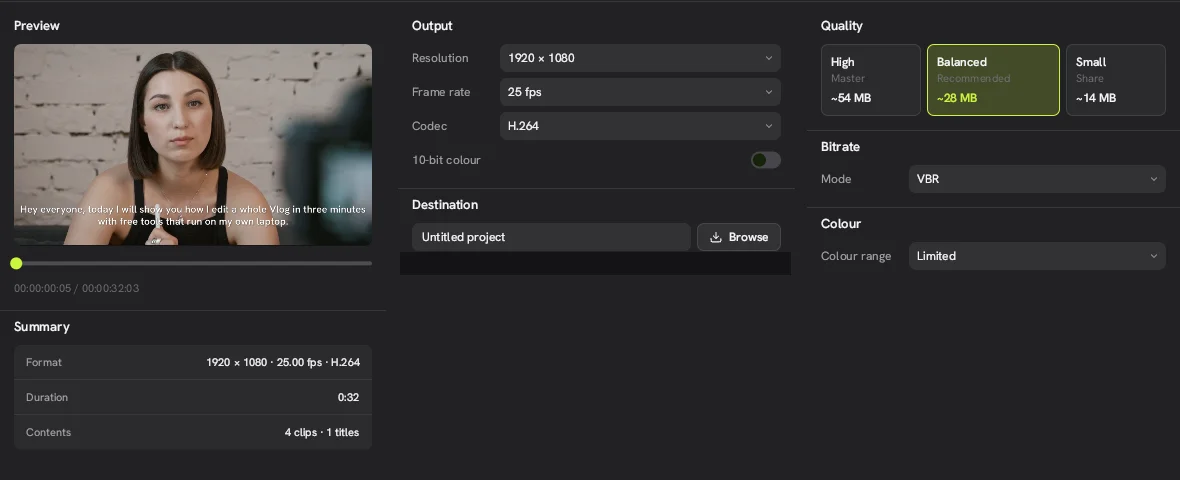
- Under Output, check Resolution and Frame rate, then pick a Codec.
- Turn on 10-bit colour if your footage and your viewers can use it.
- Pick a Quality preset: High, Balanced or Small. Each shows an estimated file size.
- Under Destination, type a file name that is not already in use and click Browse to choose the folder.
- Check the Summary box for format, duration and contents, then start the export.
Which codec and quality preset should you use?
H.264 with the Balanced preset is the safe default and the one the Concat video editor marks as recommended. Use the table to decide when to change it.
| Codec | Pick it when |
|---|---|
| H.264 | You want the file to play on almost any device or upload site |
| HEVC | You want a smaller file at the same quality and your target supports it |
| AV1 | You want the smallest files and know the platform or player can decode AV1 |
The presets trade size for quality. For our 32 second 1080p project at 25 fps the estimates were:
| Preset | Label | Estimated size |
|---|---|---|
| High | Master | About 54 MB |
| Balanced | Recommended | About 28 MB |
| Small | Share | About 14 MB |
The same screen also shows Bitrate mode (VBR in our project) and Colour range (Limited).
Which project shapes and sizes can you export?
Your export follows the shape you chose when you created the project. The New project screen offers these options:
| Setting | Options |
|---|---|
| Shape | 16:9, 9:16, 1:1, 4:3 |
| Size | 720p, 1080p, 1440p, 4K, Custom |
| Frame rate | 10, 20, 23.976, 24, 25, 29.97, 30, 48, 50, 59.94, 60, Custom |
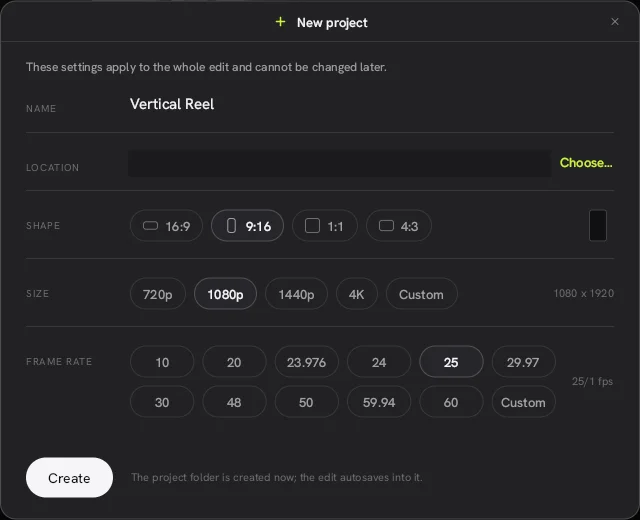
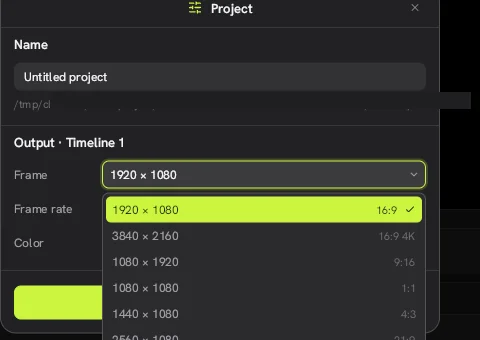
The new project dialog says these settings cannot be changed later, but in 0.2.7 you can. Click empty space on the timeline, click Modify in the Details panel and change Frame (16:9, 4K, 9:16, 1:1, 4:3, 21:9 or custom), Frame rate and Color in the Project sheet. Picking 9:16 at 1080p from the start is still the easy route for Reels, Shorts and TikTok.
How fast is export in the Concat video editor?
Fast enough for short videos even without a GPU. Since Concat is free, you can time it on your own footage at no cost. Our 32 second 1080p project with captions took about 40 seconds on Linux with software rendering. The README describes a GPU compositor with hardware decoding, so a machine with a working GPU should do better.
What are the limits?
- The "file already exists" stall. In 0.2.7 the export just waited, with no error, when a file with the same name was already in the folder. Renaming the output fixed it. Give every export a new name until this is fixed.
- Shape is set in the project, not at export. The Export screen does not crop a 16:9 edit to 9:16. Change the frame in the project settings first and reposition your clips.
- We timed one export. Our numbers come from a single 1080p job. We did not time 4K, HEVC or AV1.
- Estimates are estimates. The preset sizes depend on your footage and length.