If text to speech in the Concat video editor shows a red error asking you to download Pocket TTS, the fix takes about a minute. We hit this exact error while testing Concat 0.2.7 and solved it by installing one more model.
What does the error say?
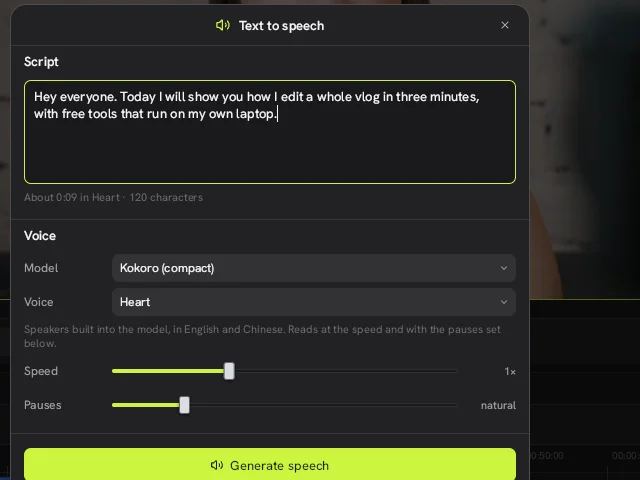
After typing a script, choosing Kokoro (compact) and the voice Heart, and clicking Generate speech, Concat showed: “the stock voices are Pocket TTS's recordings - download Pocket TTS in Settings > Speech, or read in a sample voice of your own”. No audio was created.
How do you fix it?
- Close the Text to speech dialog.
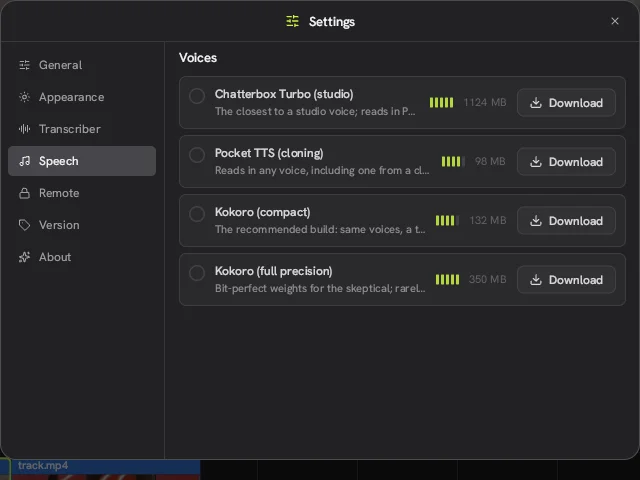
- Open Settings (the sliders icon at the top right) and choose Speech.
- Click Download next to Pocket TTS (cloning). It is about 98 MB.
- Close Settings, open Text to speech again, paste your script and click Generate speech.
That was all it took. The second attempt with Kokoro and Heart produced a 7.3-second voiceover from a 120-character script, and Concat placed it on the timeline automatically.
What if it still fails?
- No model at all. The Model menu says “None installed” until you download a voice model in Settings, Speech.
- Empty script. The dialog shows “Nothing to read yet”. Type or paste text first.
- Slow or frozen. Large models such as Chatterbox Turbo (1.1 GB) are slow on older computers. Try Kokoro compact.
- Still broken. Check the open issues on the Concat GitHub page and report it there with your version number and the exact error text.
Can I use my own voice instead?
Yes. Pocket TTS can read in a voice taken from a short sample recording. The error message hints at this too: “read in a sample voice of your own”. Only clone voices you have permission to use.
How do you add captions to the voiceover?
Once the voiceover is on the timeline, the Concat video editor can caption it: click the captions button, turn on Use voice from timeline and pick the speech clip. See how to add subtitles.