You can remove a video background in the Concat video editor without a green screen. Select a clip, tick Auto removal and a model of about 15 MB separates the subject from everything behind it on your own computer. Put a different clip on a lower track and the subject now stands in front of it.


How do you remove a video background in the Concat video editor?
- Put the new background clip on one track and the clip with your subject on the track above it.
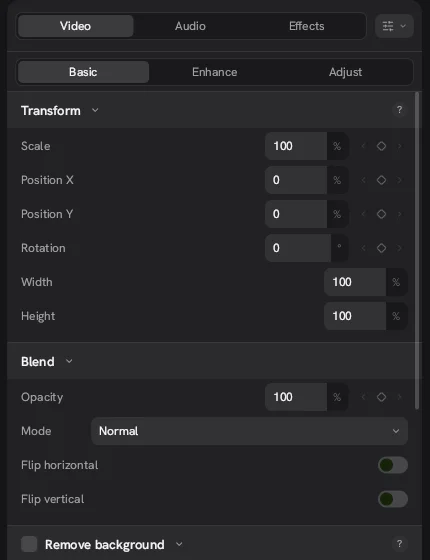
- Select the subject clip. In the inspector, open the Video tab and then Basic.
- Scroll to Remove background and tick it. Then tick Auto removal.
- Leave Subject on Auto, the default, for a person talking to camera.
- Adjust Feather, a percentage that softens the edge of the cutout.
- Play the section back and check the edges around hair and hands.
In our test project the speaker sat on the upper track and a running track clip sat below, which gave the result above.
What are the three removal modes?
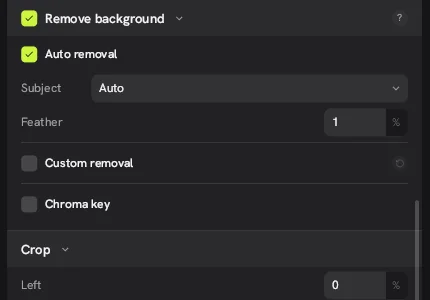
The Concat video editor gives you three ways to cut out a subject, each a checkbox under Remove background.
| Mode | Best for |
|---|---|
| Auto removal | People or objects in normal footage. The model finds the subject for you |
| Custom removal | Shots where the model gets it wrong. You paint the mask yourself |
| Chroma key | Footage shot against a solid green or blue backdrop |
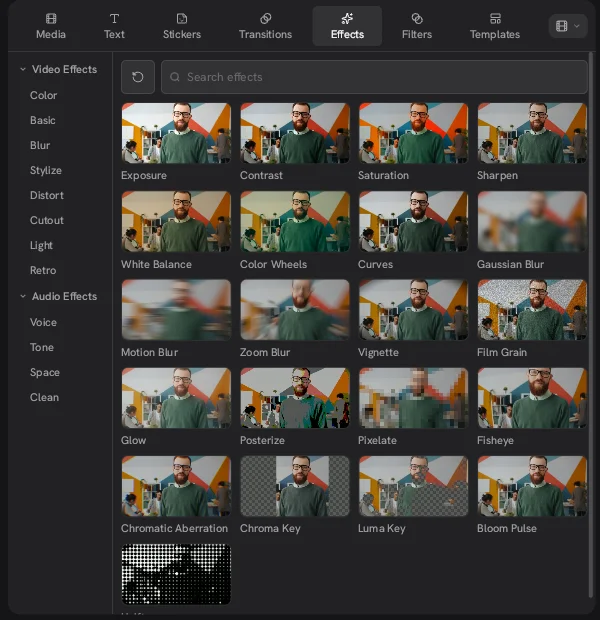
The Effects tab also has separate Chroma Key and Luma Key effects if you prefer to key a clip as an effect.
How do Custom removal and Chroma key work?
We tested both in Concat 0.2.7 on a clip we made with a solid green backdrop.
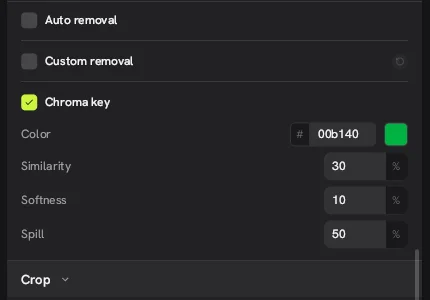
Chroma key. Tick Chroma key and Concat keys out the color in Color, which starts at 00b140, the standard chroma green. Three sliders tune it: Similarity (30% by default), Softness (10%) and Spill (50%). The key also appears as a Chroma Key card in the clip's Effects tab, where you can hide or remove it. Our green backdrop disappeared at the default settings and the clip on the lane below showed through.
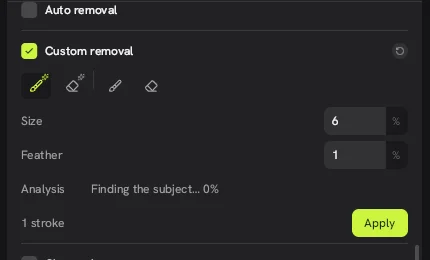
Custom removal. Tick Custom removal and four tools appear: a smart brush, a smart eraser, a plain brush and a plain eraser, with Size and Feather sliders. Paint over what you want to keep in the preview, watch the stroke count go up, then click Apply. Concat analyzes the clip from your strokes. One stroke across the subject was enough in our test, though a thin green fringe stayed on the edges. Ticking Custom removal turns Chroma key off, so pick one method per clip.
Does the footage get uploaded?
No. Like the captions and voice models in the Concat video editor, the cutout model runs locally and works offline after the download. That matters if you film people who did not agree to have their faces sent to a cloud service. The Concat app also adds no watermark to the export.
How does it compare with background removal in CapCut?
The result you get is a similar idea: a person lifted out of a shot and placed over something else. The difference with Concat is the price and the privacy. CapCut puts 4K export behind a paid plan and can watermark exports that use Pro assets. Concat is free at any resolution it supports and the Concat video editor source is public on GitHub.
What are the limits?
- Soft edges. In our test the speaker picked up a light halo against the red background. Try a lower Feather value first. Fine hair is hard for any model.
- Busy backgrounds. When the subject and the background share colors, expect to fix the mask with Custom removal.
- One method per clip. Auto removal, Custom removal and Chroma key are separate options, and switching to one turns the others off.
- We did not time it. Our test machine used software rendering, so we can't give a fair number for how fast a cutout previews or exports.
Watch it in Concat
We recorded this on Concat 0.2.7. Waiting time is sped up; every step is real.
- Put the new background on the lane below
- Select the speaker and tick Remove background
- Concat cuts the person out, no green screen