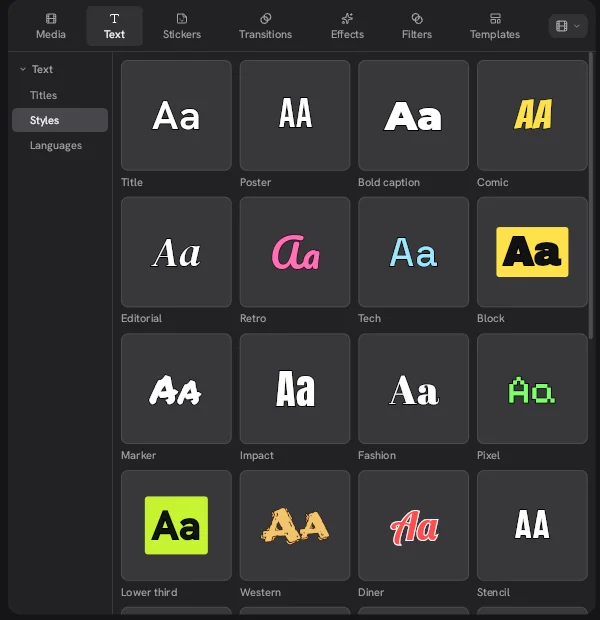
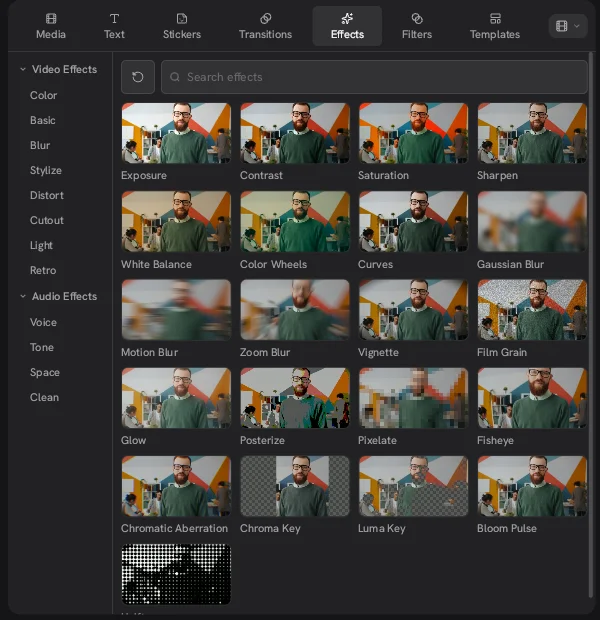
Keyframes in the Concat video editor let you change a clip over time: slide it across the frame, zoom in slowly, spin a title or fade the music under a voice. You set a value at one moment, set a different value later and Concat fills in the motion between them. Most fields that support this show a small diamond button next to them in the inspector.
How do you add keyframes in the Concat video editor?
- Select the clip you want to animate on the timeline.
- Move the playhead to where the motion should start.
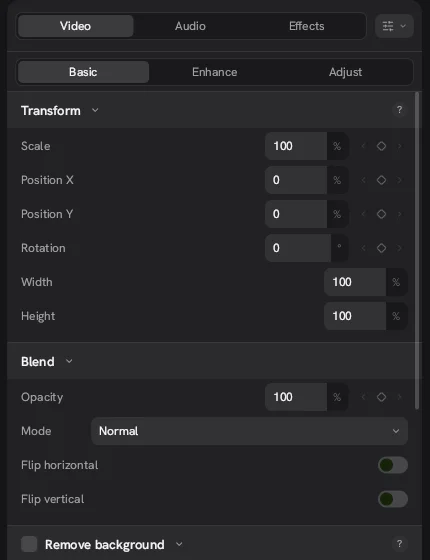
- In the inspector, open the Video tab and then Basic. Under Transform, set the starting value, for example Scale at 100%.
- Click the diamond next to that field. It turns solid, which means the first keyframe is set.
- Move the playhead to where the motion should end and type the new value. You do not need to click the diamond again: once a field has one keyframe, Concat adds a new keyframe wherever you change the value. The diamond turns lime green to show you are sitting on a keyframe.
- Play it back. Add more keyframes in between if the motion needs a pause or a turn.
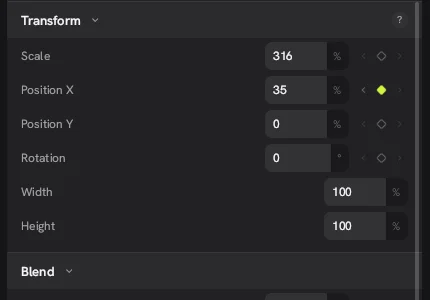
We tested this on Concat 0.2.7 by keyframing Position X from 0% to 35% over ten seconds on a 9:16 clip. The preview slid the subject across the frame as expected, and a value halfway through read 10.5%.
How do you find and edit keyframes later?
The small arrows on each side of a diamond jump the playhead to the previous or next keyframe of that field. When a clip is selected, its keyframes also show as small yellow diamonds on the timeline ruler, so you can see where the motion changes at a glance. To change a keyframe, jump to it and type a new value.
Space plays and pauses the timeline. The arrow keys step one frame at a time and Shift with an arrow key steps ten, which helps when you need to land a keyframe on an exact frame.
What can you animate?
According to the README, the Concat video editor supports keyframes on position, scale, rotation, opacity, volume and effect parameters. Here is where we found each one in 0.2.7.
| Setting | Where it is | Keyframe diamond |
|---|---|---|
| Scale, Position X, Position Y, Rotation | Video > Basic > Transform | Yes |
| Opacity | Video > Basic > Blend | Yes |
| Width, Height | Video > Basic > Transform | Not shown in 0.2.7 |
| Volume level | Audio > Volume | Yes |
| Effect parameters | The effect's own settings | Yes, per the README |
Blend Mode, Flip horizontal and Flip vertical are on the same panel but have no diamond, so they stay fixed for the length of the clip.
Is there a curve editor for easing?
Yes, the README lists a curve editor as part of the keyframe feature. Easing is what turns a stiff move into one that speeds up and slows down like a camera operator would. We have not spent enough time with it to describe each curve, so treat that part of this page as a pointer to explore rather than a walkthrough.
How do Concat keyframes compare with CapCut?
If you have animated in CapCut, the Concat app will feel familiar. You still mark a value, move in time and change it. The difference is that every keyframe feature here is free, with no Pro tier and no watermark. The Concat video editor also runs offline on Windows, macOS, Linux, Android and iOS.
What are the limits?
- Not every field has a diamond. Width and Height showed no keyframe button in our test, so use Scale for size changes.
- Some settings are static. Blend mode and flips can't be animated in 0.2.7.
- We did not test the curve editor in depth. Its options may change while Concat is in beta.
- It is beta software. Projects autosave, but play a complex animation through in the preview before you export.
Watch it in Concat
We recorded this on Concat 0.2.7. Waiting time is sped up; every step is real.
- Click the diamond next to Scale
- Move the playhead and type a new value
- Concat fills in the zoom between keyframes