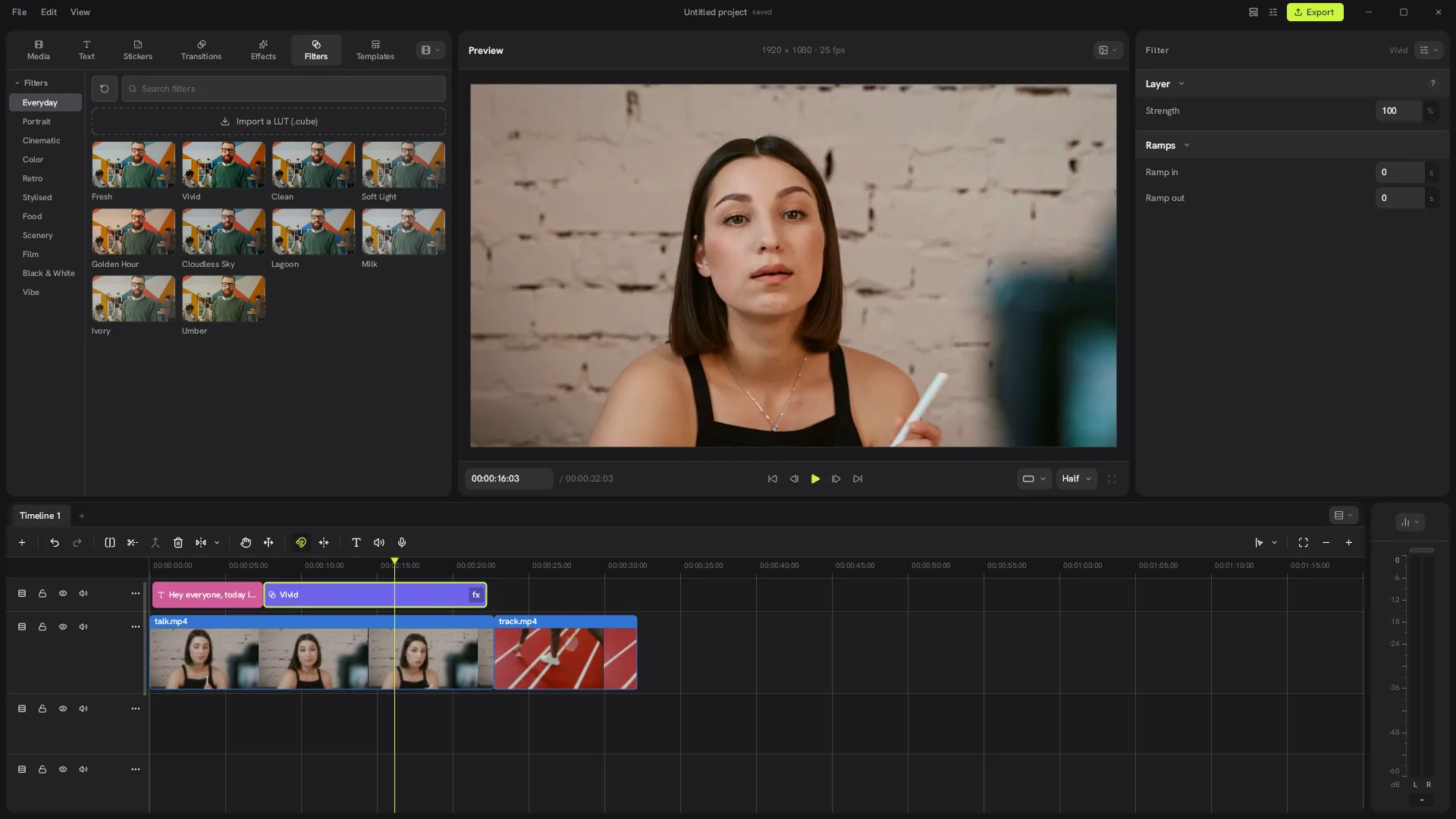
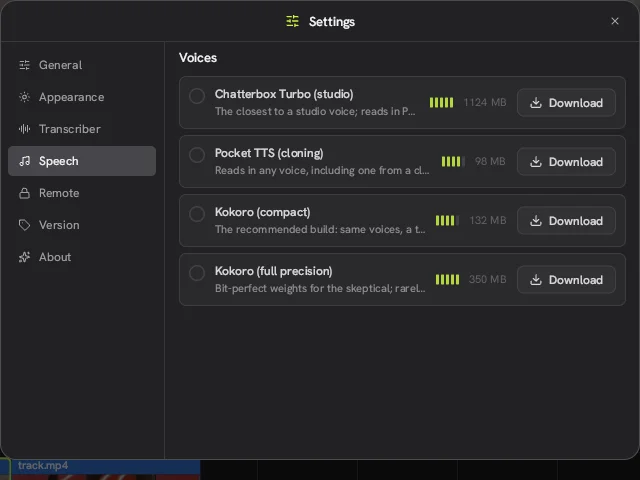
A Concat video editor export that sits at the start, or stops moving partway, usually has one of three causes. We ran into the first one ourselves while testing Concat 0.2.7.
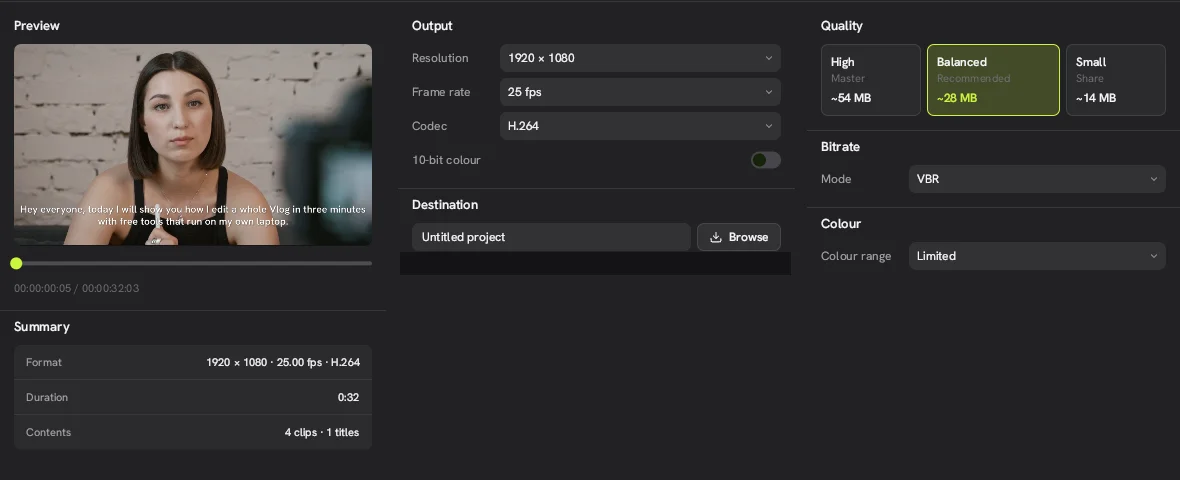
Is a file with the same name already there?
This is the one we hit. Our second export of the same project started, then nothing happened for eight minutes. The CPU was idle and no file was written. The first export had already saved a file with the same name in the Movies folder.
Fix: on the Export screen, change the name under Destination (or delete the old file), then click Export again. With a new name, our export finished in about two minutes.
Are you on Windows with blur or glow effects?
The Concat 0.2.7 release notes say a blur or glow can still stall an export on Windows. The developers track it as issue #297 on GitHub. Until it is fixed, try exporting without those effects, or render that part separately and bring it back in as a clip.
Is your computer rendering without a GPU?
Concat draws every frame on the graphics card. Without one, as on our test machine, it falls back to software rendering. Exports still work but take longer, and heavy effects slow them down more. A 32-second 1080p export took about 40 seconds with captions only and about two minutes with a filter layer on top.
If you are on a laptop with two graphics chips, make sure Concat uses the dedicated one. See running Concat without a GPU for what to expect.
Other quick checks
- Disk space. A Balanced 1080p export of a 30-second clip was around 12 MB, but 4K exports are much larger.
- Quality preset. High (Master) makes the biggest file and takes longest. Try Balanced.
- Codec. If HEVC or AV1 fails on your hardware, switch to H.264.
- Report it. If none of this helps, open an issue on the Concat GitHub page with your OS, version and the export settings.
More on formats and presets: Concat export settings.