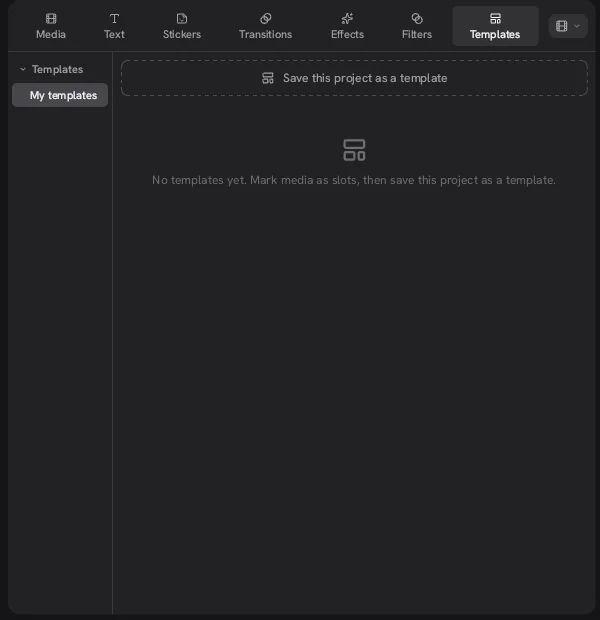
The Concat video editor does not come with a template library. In version 0.2.7 the Templates tab opens empty, with a single button to save the current project as a template. You build an edit once, mark the clips you plan to swap later as slots and keep the rest of the edit for next time.
How do you make a template in the Concat video editor?
- Build an edit you want to repeat. A weekly intro, a podcast clip layout or a product demo format works well.
- Decide which clips change every time, such as the main footage or a guest's photo.
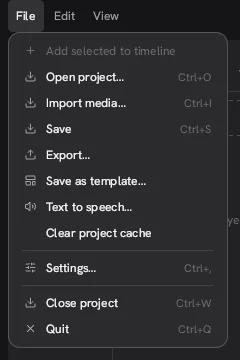
- Open the Templates tab and click Save this project as a template, or choose File, Save as template….
- Concat names it after your project, for example “Vertical Reel template”. Saving a second time with the same name shows “a template named … already exists” instead of overwriting it.
The panel also asks you to mark media as slots before saving. Slots are the clips Concat swaps for new media when you start a project from the template: the project's source code describes them as placeholder media that get filled with your files in order. In 0.2.7 we could not find a control in the app that marks a clip as a slot. The clip right-click menu, the media panel and the inspector had nothing for it, so a template saved today keeps all of its media as fixed assets.
Does Concat have CapCut style templates?
No. If you came to Concat looking for a CapCut style gallery of ready-made trends, it is not there in 0.2.7. Nothing in the panel downloads templates from the web, which fits the app's local, offline design. What you get instead is a way to reuse your own work. For anyone who posts the same format every week, that is often more useful than a trend template that a thousand other accounts also used.
What should you mark as a slot?
Mark anything that changes from one video to the next and leave the rest alone. A simple rule:
| Keep in the template | Mark as a slot |
|---|---|
| Intro and outro clips | The main footage |
| Title styles and lower thirds | Guest photos or screenshots |
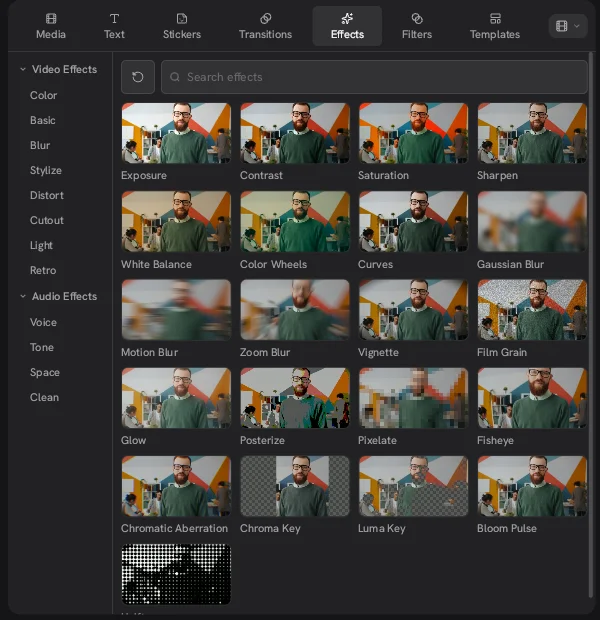
| Filters and color effects | B-roll for this episode |
| Music bed and voice cleanup settings | The voiceover |
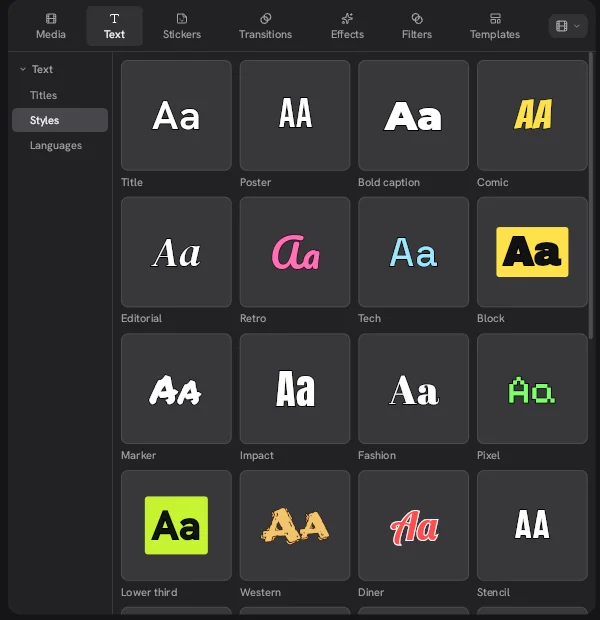
Titles are worth keeping even though the words change. You keep the style, position and keyframes and only retype the text.
Why make your own template?
It saves the setup work you would otherwise repeat on every project in the Concat video editor. The Concat app is free, so a template costs you nothing to keep. Because a project's shape and frame rate are set when it is created, a template should also carry the right format for where you post. A 9:16 template at 1080p is a good base for Reels, Shorts and TikTok.
What are the limits?
- No built-in library. The Templates tab is empty until you add your own.
- No slot control yet. We saved a template in 0.2.7, but found no way to mark slots, and the My templates list did not refresh in the same session.
- Media is copied. Saving copies every clip into the template folder, so long footage makes a large template.
- One shape per template works best. Changing the frame later is possible, but clips keep their old framing.
- Beta software. The Concat video editor is still in beta, so how templates work may change between releases.