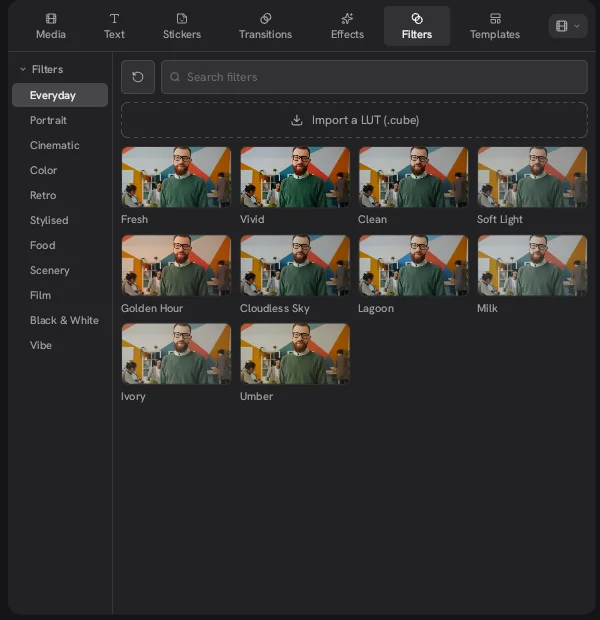
Concat has an Effects tab for video and audio effects and a Transitions tab for the joins between clips. Each one is sorted into named groups, rendered on the GPU and shown live in the preview. The README counts about 100 effects, filters and transitions in total, all free and none of them tied to a paid tier.
How do you add effects and transitions in the Concat video editor?
- Open the Effects tab in the top left panel.
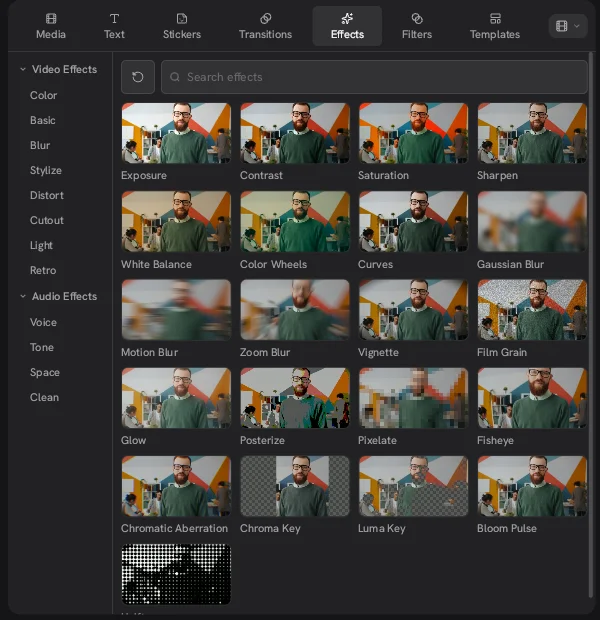
- Pick a group under Video Effects or Audio Effects. You can also type a name into Search effects.
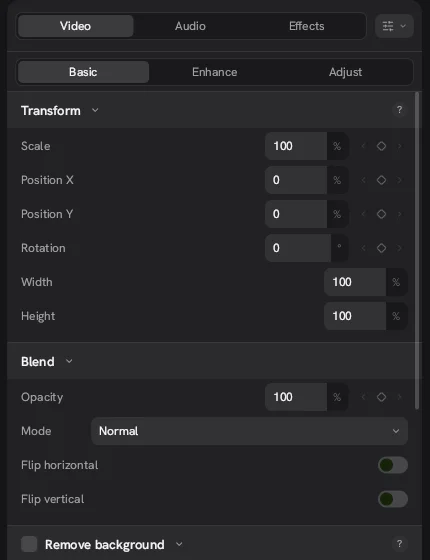
- Add the effect to your edit, then select it to change its settings in the inspector. Effects on a clip are listed in that clip's Effects tab on the right, where each one can be hidden, reordered or removed.
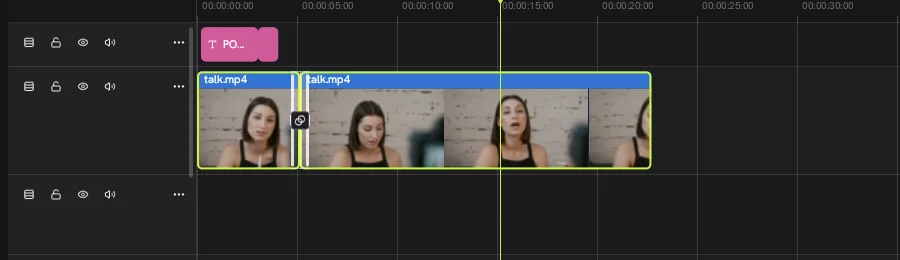
- For a transition, make sure the two clips touch on the same track. If you have one long clip, put the playhead where you want the cut and press Ctrl+B (Cmd+B on a Mac) to split it.
- Click the first clip, then hold Ctrl and click the second clip so both are selected.
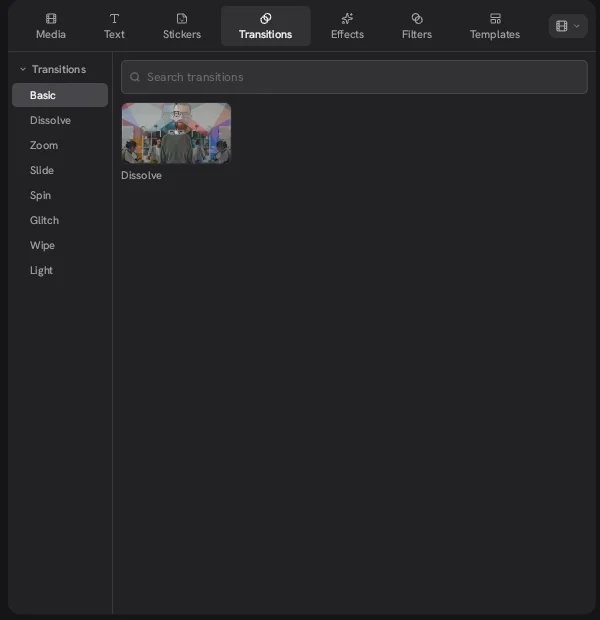
- Open the Transitions tab, hover over a transition such as Dissolve and click the + button that appears on its thumbnail.
- Play across the cut to check the timing.
Dragging a transition onto the cut did nothing in our test of 0.2.7, and clicking + with only one clip selected shows this message: “Select two clips that meet on the same track, then pick a transition”. With both clips selected it worked right away, and a small transition marker appeared on the cut.
When a clip is selected, the inspector on the right also shows its own Effects tab next to Video and Audio.
What video and audio effects does Concat have?
The Concat video editor groups its effects into 8 video groups and 4 audio groups.
| Kind | Groups |
|---|---|
| Video Effects | Color, Basic, Blur, Stylize, Distort, Cutout, Light, Retro |
| Audio Effects | Voice, Tone, Space, Clean |
The video effects we saw in 0.2.7 include Exposure, Contrast, Saturation, Sharpen, White Balance, Color Wheels, Curves, Gaussian Blur, Motion Blur, Zoom Blur, Vignette, Film Grain, Glow, Posterize, Pixelate, Fisheye, Chromatic Aberration, Chroma Key, Luma Key and Bloom Pulse. On the audio side the README mentions voice changers such as chipmunk, robot and telephone.
Which transitions are included?
The Concat video editor sorts transitions into 8 groups: Basic, Dissolve, Zoom, Slide, Spin, Glitch, Wipe and Light. The Basic group holds a single plain Dissolve, which is the safe choice for most cuts.
A general editing tip: most cuts in a talking head video look better with no transition at all. Save Zoom, Spin and Glitch for a change of scene or a beat drop in a short vertical clip.
How does this compare with CapCut effects?
Coming from CapCut, you may be used to a bigger menu with a catch attached: Pro assets there can put a watermark on your export unless you pay. Every effect in the Concat app is free, open source on GitHub and runs on your own machine. If you mostly use a dozen favorites, the Concat video editor probably covers them.
What are the limits?
- A smaller catalog. About 100 presets across effects, filters and transitions is enough for most short videos but smaller than what paid apps offer.
- Basic transitions are basic. The Basic group has one entry, Dissolve.
- We did not test every group. The lists above come from the panels we opened in version 0.2.7 of the Concat video editor.
- A GPU helps. Our test machine used software rendering, so we can't say how a heavy stack of effects performs without one.
Watch it in Concat
We recorded this on Concat 0.2.7. Waiting time is sped up; every step is real.
- Select both clips: click, then Ctrl+click
- Hover a transition and click +
- Step across the cut to check the dissolve