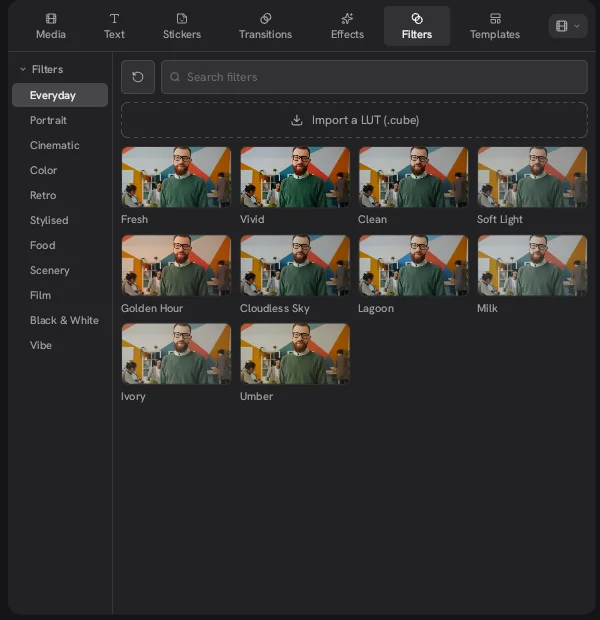
The Concat video editor has a Filters tab with ready-made looks in 11 groups and a button to import your own .cube LUT. A filter goes on the timeline as its own clip above your footage, so you decide exactly where the look starts and stops. Each one has a strength setting and timed ramps in and out.
How do you add a filter in the Concat video editor?
- Open the Filters tab in the top left panel.
- Pick a group on the left, such as Everyday. You can also type a name into Search filters.
- Add a filter like Vivid to the timeline. In our project it landed as a clip named Vivid on the track above the video.
- Drag the ends of the filter clip so it covers the part of the edit you want to change.
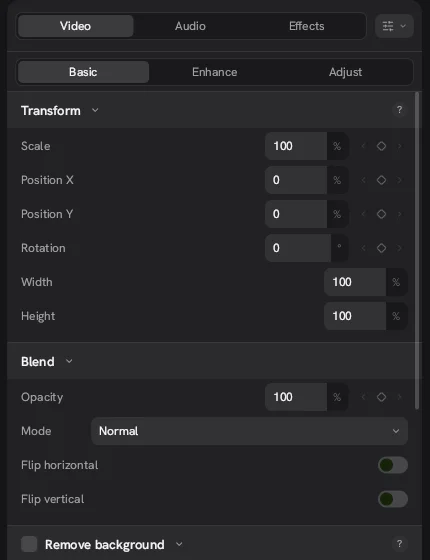
- Select the filter clip. In the inspector, set Strength under Layer and use Ramp in and Ramp out under Ramps to ease the look in over a few seconds.
What filter groups does Concat include?
The Concat video editor sorts its filters into 11 groups, listed down the left side of the Filters tab.
| Group | Group | Group |
|---|---|---|
| Everyday | Portrait | Cinematic |
| Color | Retro | Stylised |
| Food | Scenery | Film |
| Black & White | Vibe |
The Everyday group alone holds Fresh, Vivid, Clean, Soft Light, Golden Hour, Cloudless Sky, Lagoon, Milk, Ivory and Umber. The README counts about 100 effects, filters and transitions across the whole Concat app.
How do you import a LUT in Concat?
Click Import a LUT (.cube) at the top of the Filters tab and choose the file. A LUT is a color lookup table that maps every color in the shot to a new one. Colorists use them to match cameras or to apply a grade they built elsewhere. If you shoot in a log profile, your camera maker probably publishes a .cube LUT to convert the footage back to normal color. That file goes in through the same button.
Should you use a filter or a color effect?
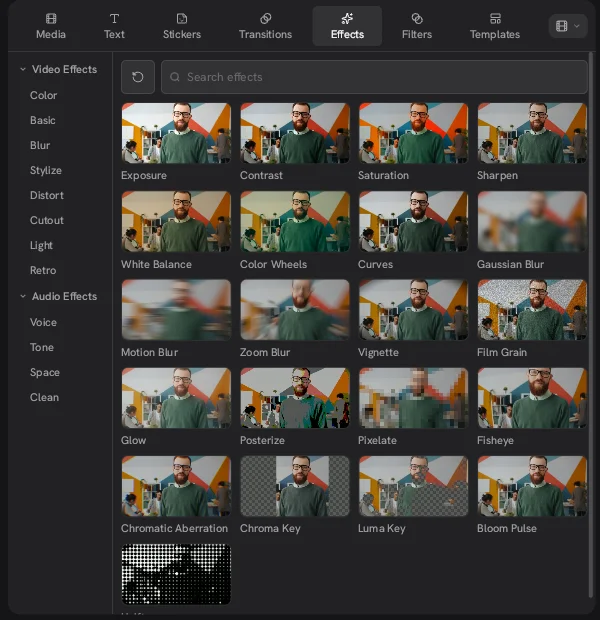
Use a filter for a quick look and the Effects tab for control. The Effects tab in the Concat video editor has Exposure, Contrast, Saturation, White Balance, Color Wheels and Curves for manual correction. A common approach is to fix exposure and white balance with effects first, then add a filter at reduced strength on top. People moving from CapCut will recognize the split between presets and manual adjustments.
What are the limits?
- Only .cube for LUTs. That is the one format the import button names.
- Thumbnails use a sample image. To judge a look on your own footage, add it to the timeline and watch the preview.
- We only listed the Everyday group. The other ten groups have their own presets that we have not catalogued here.
- Preview speed. On our test machine with software rendering, color work still showed in the preview, but a GPU should make scrubbing smoother.