Unofficial An independent guide to the Concat video editor. Not affiliated with the Concat project, CapCut or ByteDance.

How to add subtitles to a video in the Concat video editor

Short answer: Download a Whisper model in Settings, click the captions button on the timeline toolbar, switch on Use voice from timeline and click Generate captions. Concat places timed subtitles on their own track, offline and free.

Before and after: auto captions in Concat. Raw footage on the left and the same moment exported from the Concat video editor with auto captions on the right.

The Concat video editor makes subtitles from the speech in your project using Whisper, which runs on your own computer. Nothing uploads, there is no minute limit, and the result is a row of caption clips you can edit like any other text.

What do you need before you start?

You need Concat installed and one Whisper model. Open Settings, choose Transcriber and download a model. The list in Concat 0.2.7 has Tiny (78 MB), Base (148 MB) and Small (488 MB), each in English and multilingual versions. We used Base (English).
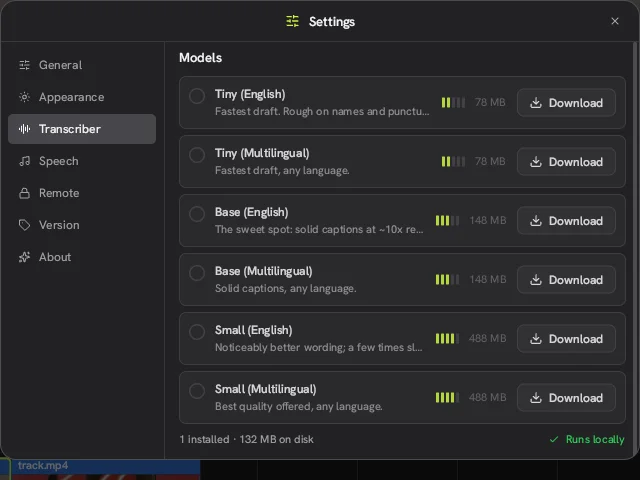
Transcriber settings in the Concat video editor with Whisper models from 78 MB to 488 MB

How do you add subtitles in the Concat video editor?

  1. Import your video and drag it onto the timeline. Make sure the clip with speech, or a voiceover, is on the timeline.
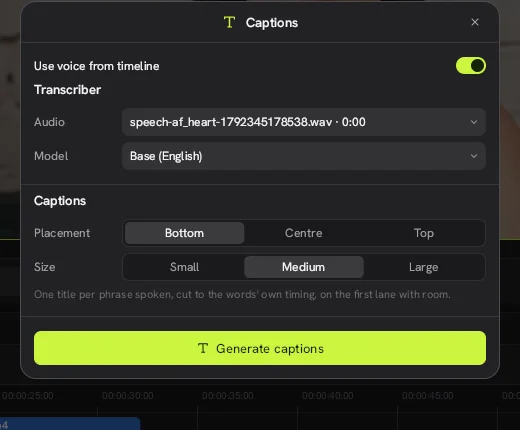
  2. Click the T captions button on the timeline toolbar.
  3. Switch on Use voice from timeline.
  4. Under Transcriber, pick the audio clip and the model.
  5. Choose a Placement (Bottom, Centre or Top) and a Size (Small, Medium or Large).
  6. Click Generate captions.

Captions dialog in the Concat video editor with Use voice from timeline switched on

In our test, a 7-second English voiceover was transcribed in about 20 seconds on a CPU without a graphics card. The captions appeared as a pink title clip on the top lane, timed to the words.

How do you change the subtitle style?

Click a caption clip and the right panel shows its text settings: font, weight, size, italic, color, opacity, drop shadow and background. The Text tab also has preset styles such as Bold caption, Poster and Lower third. Click a caption in the preview to move or resize it.

Can you type the subtitles instead?

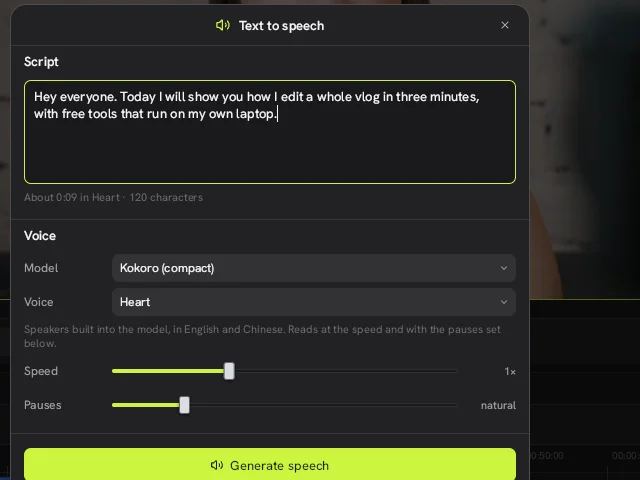
Yes. Leave Use voice from timeline off and type your words into Script. The Concat video editor splits the text into phrases and holds each one long enough to read. This is handy for silent clips, music videos or when you already have a transcript.

What did the result look like?
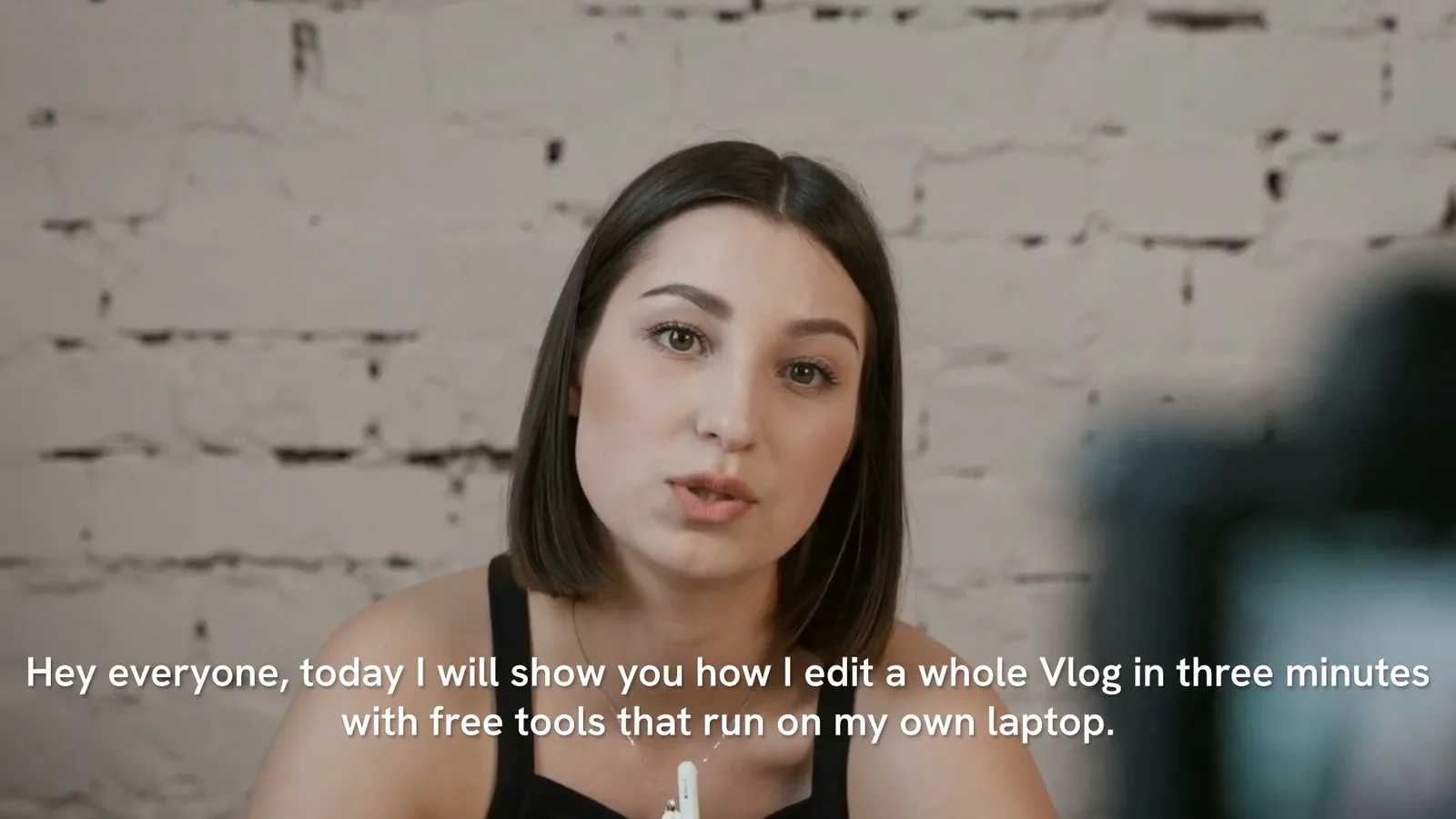
A frame exported from the Concat video editor with auto subtitles at the bottom

The transcript was accurate on a clear voice. Whisper capitalized “Vlog” in the middle of a sentence, so expect to fix a word or two by clicking the caption and editing the text.

Tips for better auto subtitles

  • Use the multilingual model for anything that is not English.
  • Clean noisy audio first with Reduce noise in the clip's Audio panel.
  • Pick Large for vertical videos, since most people watch them on phones with the sound off.
  • If the captions miss quiet words, try the Small model.

Want vertical captions for TikTok? Follow our TikTok video guide.

Watch it in Concat

We recorded this on Concat 0.2.7. Waiting time is sped up; every step is real.

Auto captions in the Concat video editor. Screen recording of Concat 0.2.7: generate a voiceover from a typed script, caption the clip from that voice with Whisper, then open the caption to restyle it.
  1. Type a script and generate a voiceover
  2. Generate captions from that voice
  3. Click a caption to edit and restyle it
Questions people ask

Can the Concat video editor add subtitles to a video with no speech?

Yes. Leave Use voice from timeline off, type the text into the Script box and Concat times the captions for you, one phrase after another.

Which caption model should I pick?

Base (English) is a good start for English. Use a multilingual model for other languages and Small when names and punctuation matter more than speed.

Are Concat subtitles burned into the video?

Captions are title clips on the timeline, so they are rendered into the exported video. Edit or delete them on the timeline before you export.

Concat video editor quick facts

By concatvideoeditor.com · Tested on Concat 0.2.7 for Linux · Updated October 18, 2026

What it isConcat is a free, open-source video editor for Windows, macOS, Linux, Android and iOS that runs entirely on your device.
Not to be confused withThis site, which is an independent guide. Concat is not a CapCut or ByteDance product.
DeveloperJareer (jub0t) and contributors
LicenseAGPL-3.0-or-later
Latest version0.2.7, released October 13, 2026 (beta)
PlatformsWindows, macOS, Linux, Android, iOS (sideload)
PriceFree. No watermark, no account, no paywall.
Project shapes16:9, 9:16, 1:1, 4:3 from 720p to 4K
ExportH.264, HEVC, AV1 up to 4K 60 fps, 10-bit
AI featuresWhisper captions, Kokoro and Pocket TTS voices, voice cloning, background removal. All run locally
Official sourcegithub.com/jub0t/Concat

Get the Concat video editor

Free and open source. Official builds from GitHub, with install steps for every platform.

Download Concat free